Turn a conversation
into a story.
Import or record your conversation, find passages worth keeping and assemble your edit in the timeline.
Transcript tools are in beta. Review suggested passages and cuts before exporting.
 Vabrium
Recording, AI-assisted clip review, and timeline editing in one Windows workspace. Capture your session, find the moments, and finish the video.
Record or import your footage. Review suggested moments and shape the edit yourself. The dedicated game-detection model starts with Fortnite.
Windows desktop app · NVIDIA recommended for AI · Check your PC

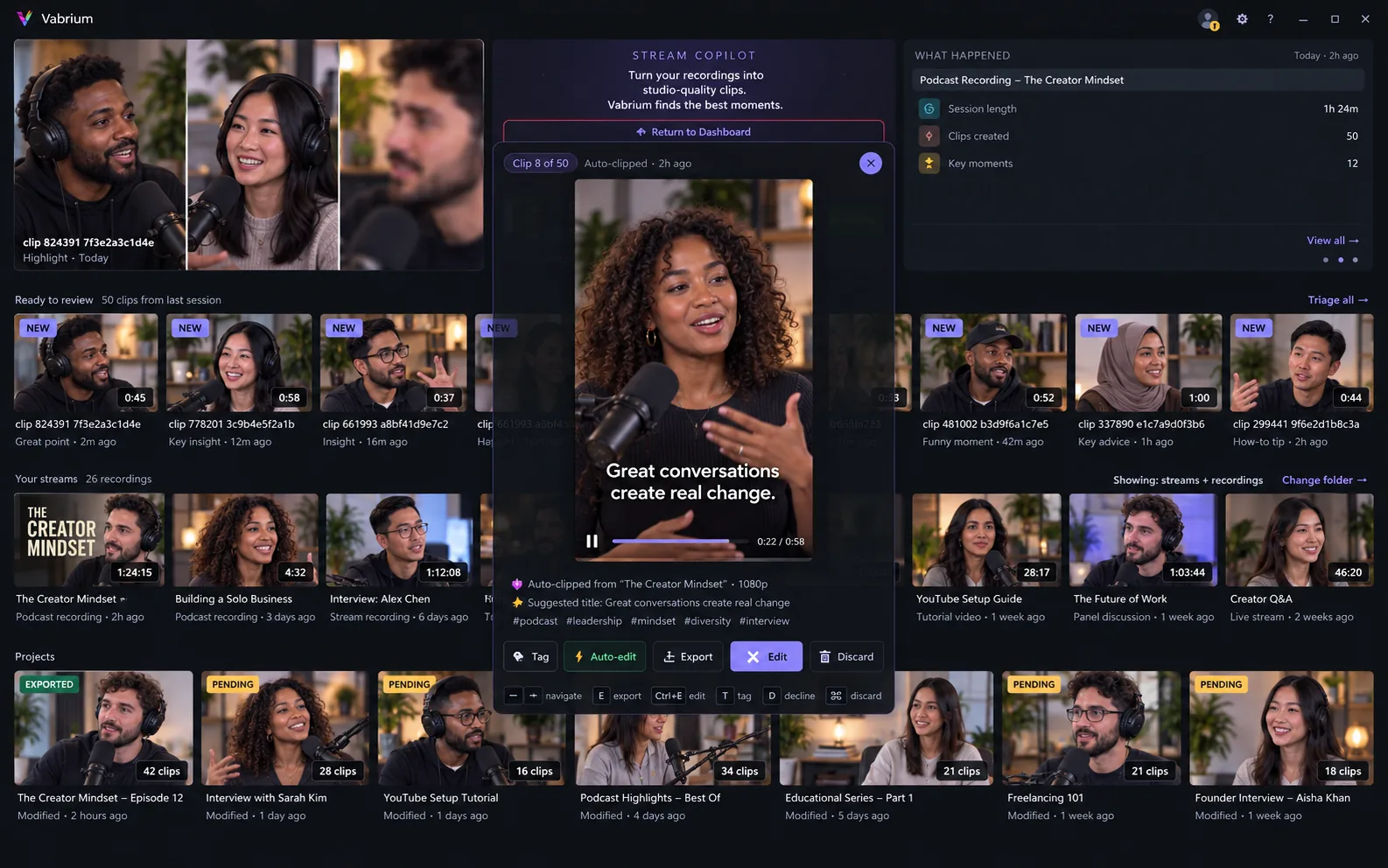
Capture the moment, choose the keeper, and shape the edit. Take a closer look at the workflow in these screenshots from our development build.
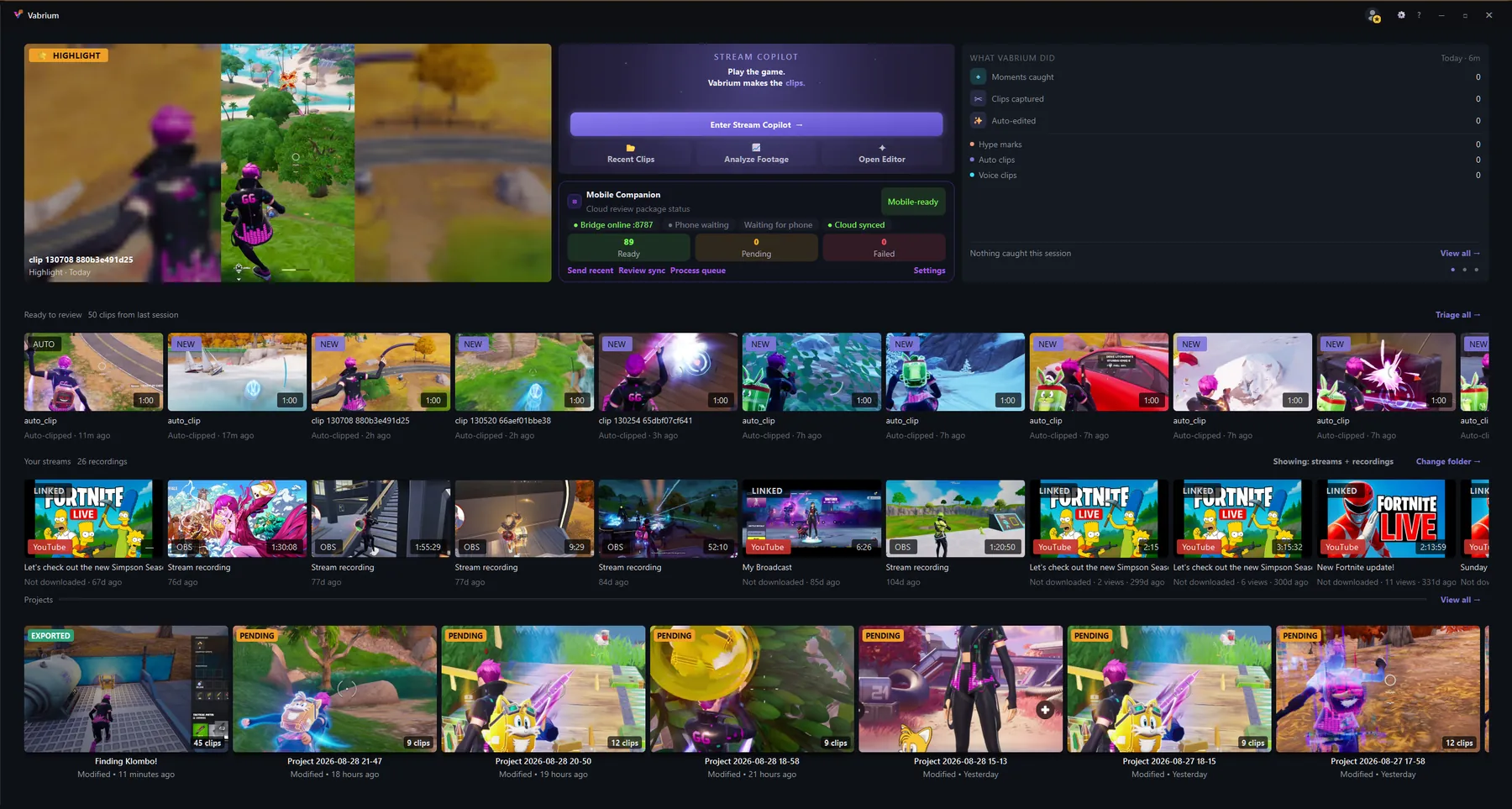
Bring in a recording or start a capture. Your clips, sessions and projects come together in the launcher.
Look for: your recent sessions and projects
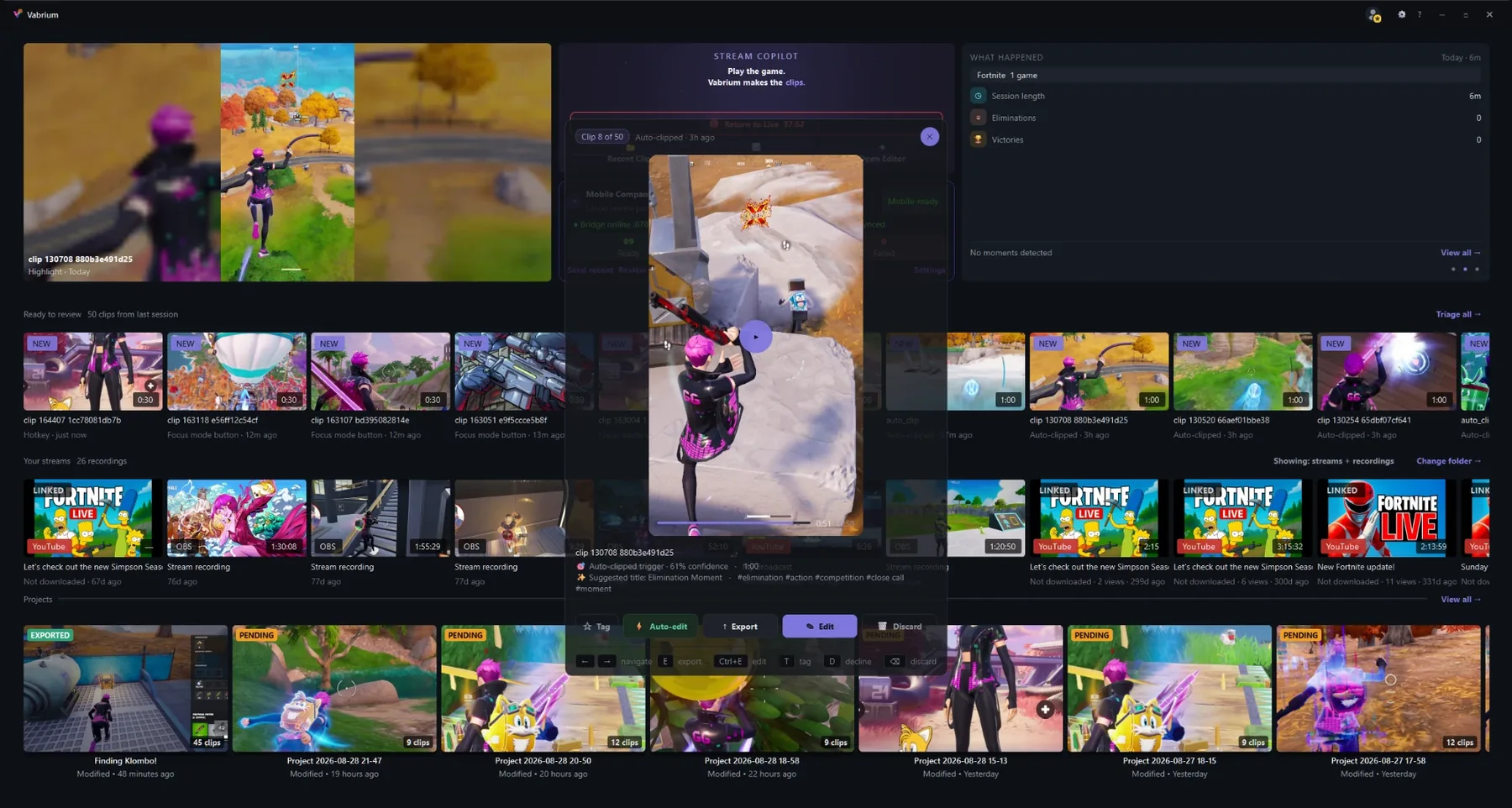
Review suggested clips, play them back and decide what deserves a place in the edit. AI helps you look; you choose what stays.
Look for: clip cards and review controls
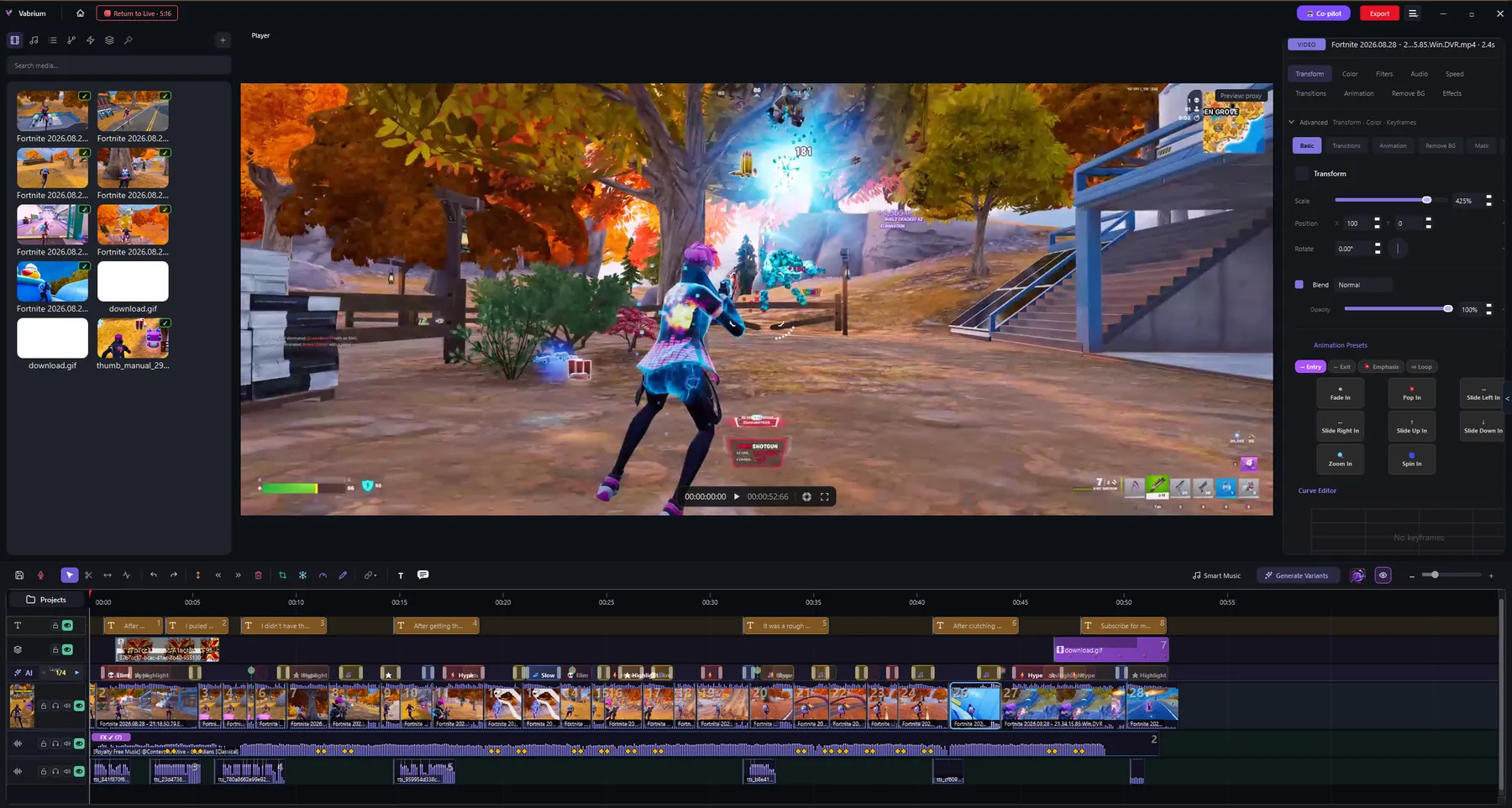
Trim and arrange your footage, refine the sound and shape the story in the timeline. Then export your finished video.
Look for: the preview above your timeline
Development build screenshots · Select an image to enlarge it. See which features are still coming.
One connected workflow
Record a session and come back to suggested moments with context. Fortnite is the focus of the dedicated game model. Review every suggestion, or mark a moment yourself when you know it matters.
Reading a game HUD is Fortnite-only in beta, with a Call of Duty model in training. The audio and chat signals are not game-specific and run in any live session; saved recordings without a supported game rely on your own marks. Additional models and the Training Center are still coming. See what’s next →
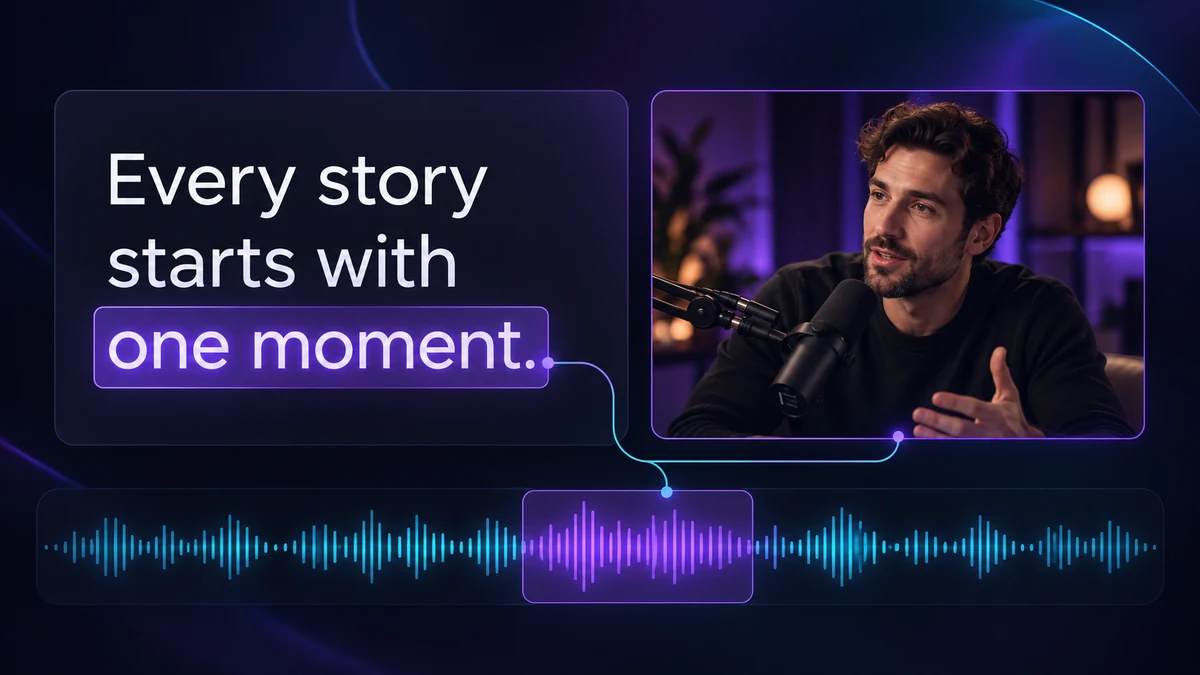
Import or record your conversation, find passages worth keeping and assemble your edit in the timeline.
Transcript tools are in beta. Review suggested passages and cuts before exporting.
Bring in a tutorial, interview or camera recording. Trim your takes and arrange the strongest parts in the editor.
Manual review and editing remain central. AI-assisted results need your review.
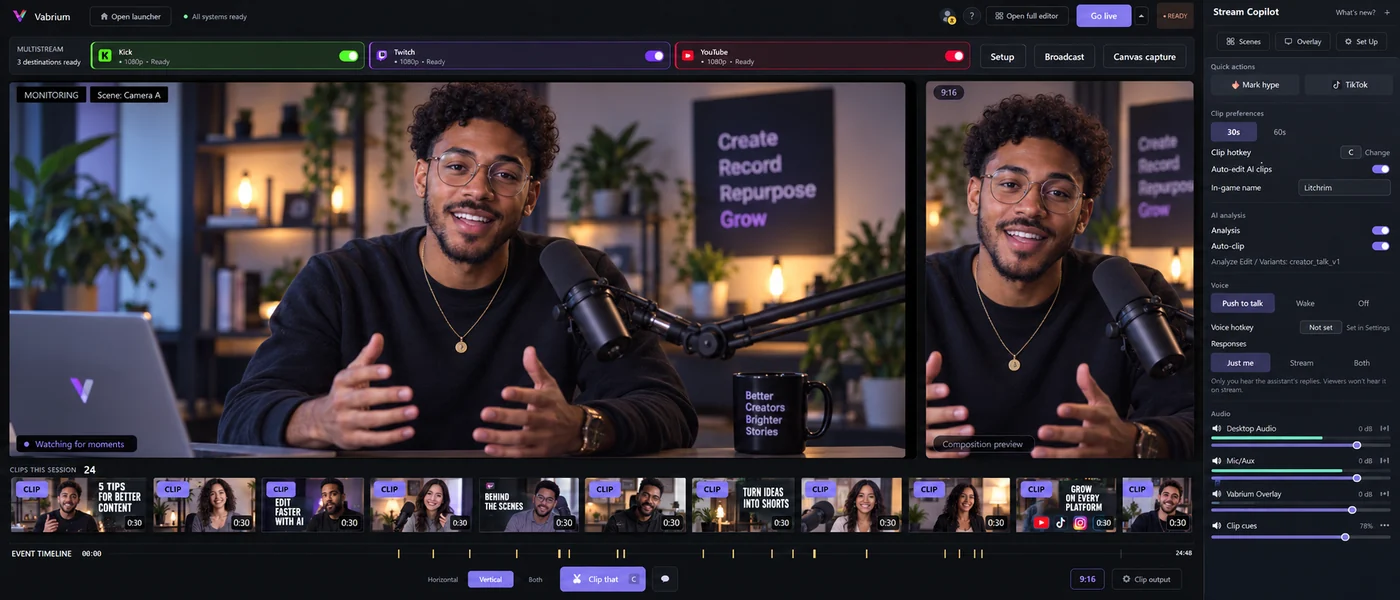
Record a session, review AI-assisted suggestions and bring your keepers into the timeline. Fortnite is the focus of the dedicated game-detection model.
Detection depends on the game, footage and hardware. Always review the result.
Ask Vabrium to capture a moment, adjust an edit, or create a thumbnail. Voice commands keep common actions within reach; longer conversations use the optional local language model.
You: “Clip the last thirty seconds.”
Vabrium: “Saved the last thirty seconds.”
You: “Undo that.”
Vabrium: “Undone.”
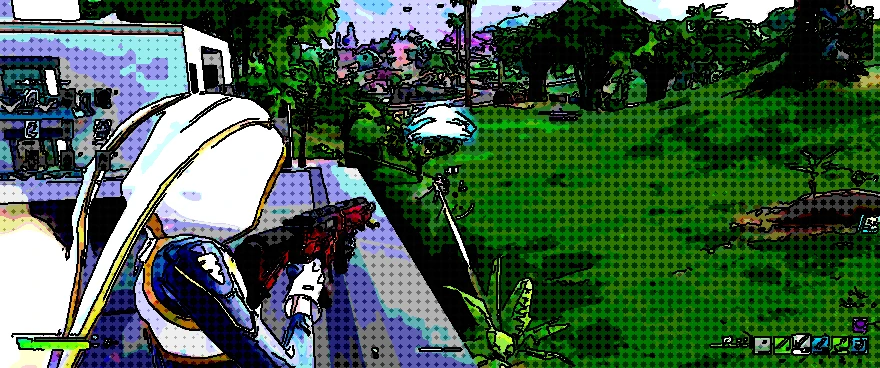
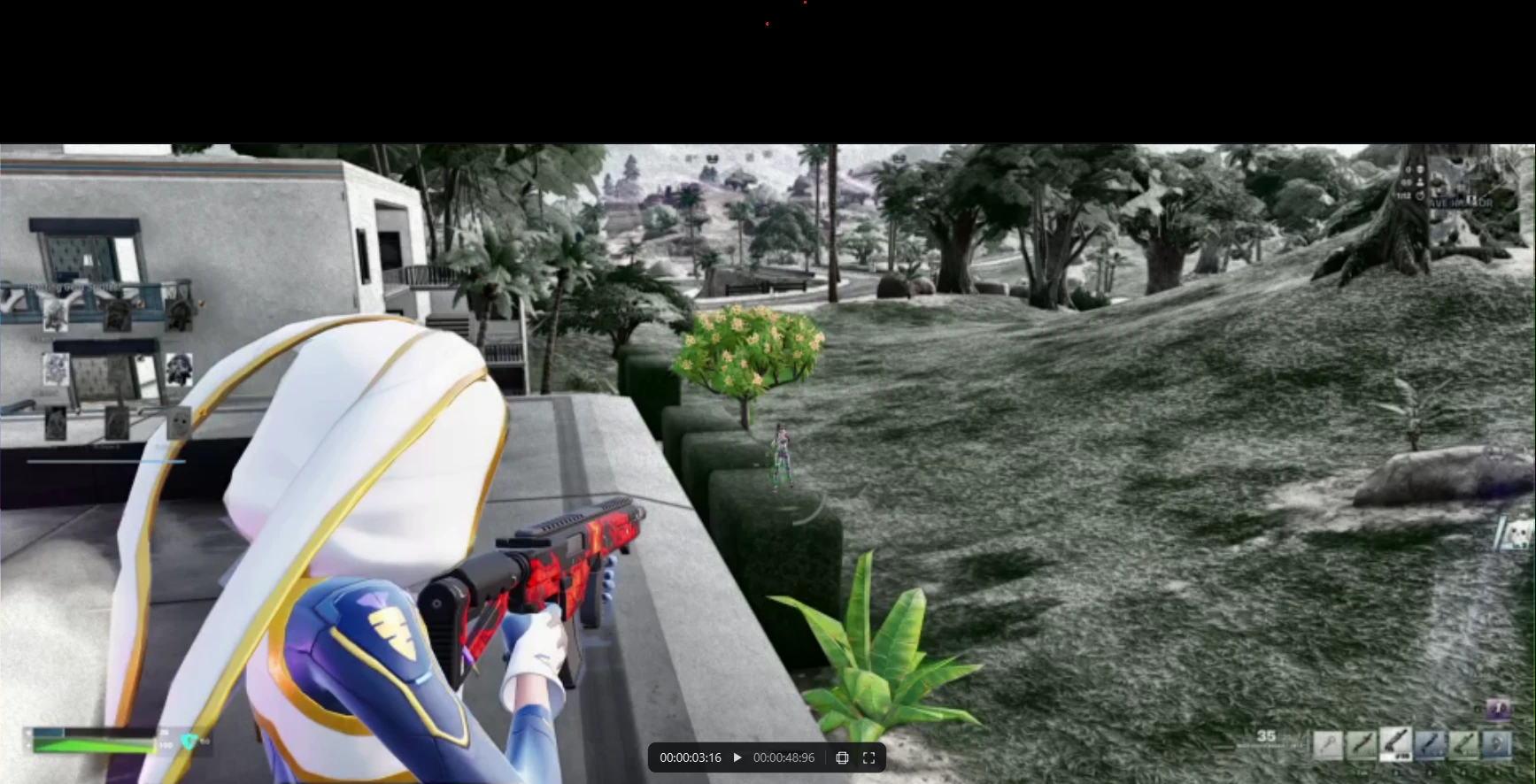
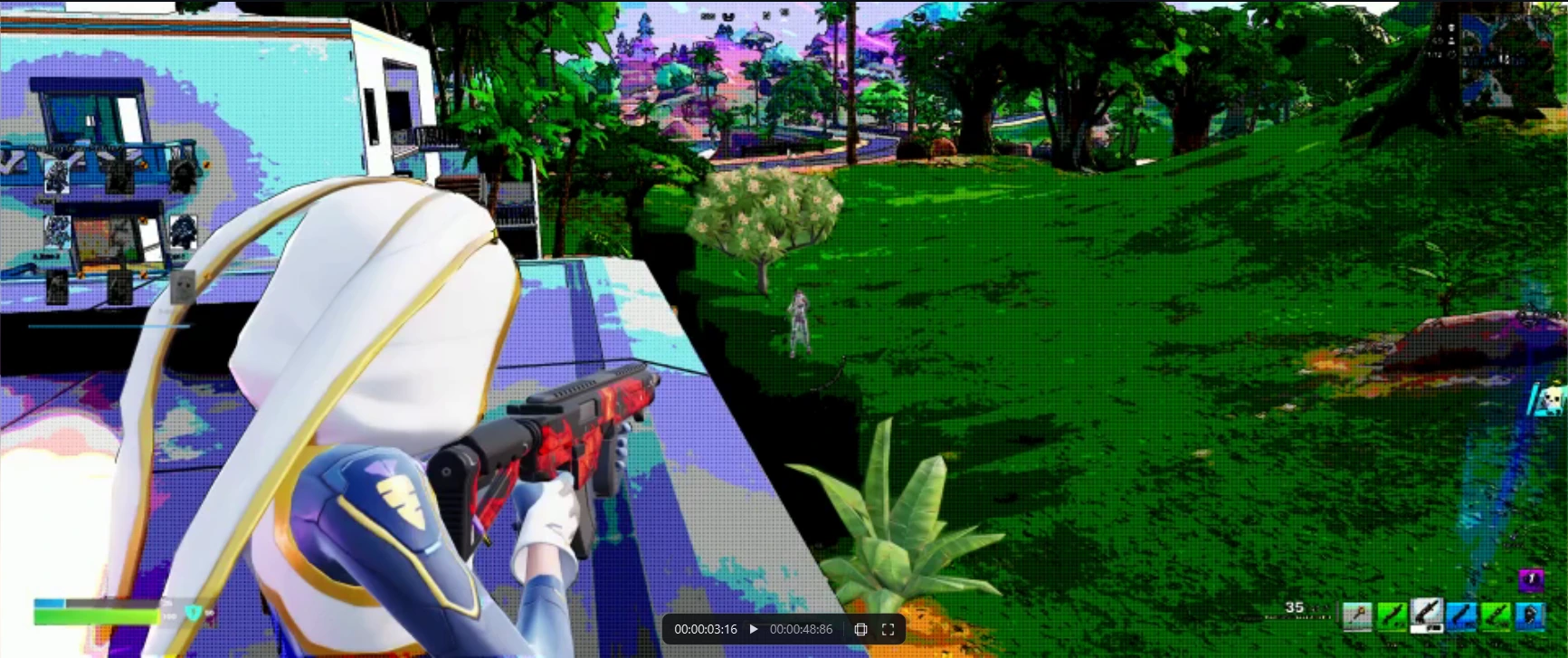
Creative Studio combines a held moment with subject masking and stylized artwork. Explore four looks below, including Cinematic and Comic outputs from Creative Studio.
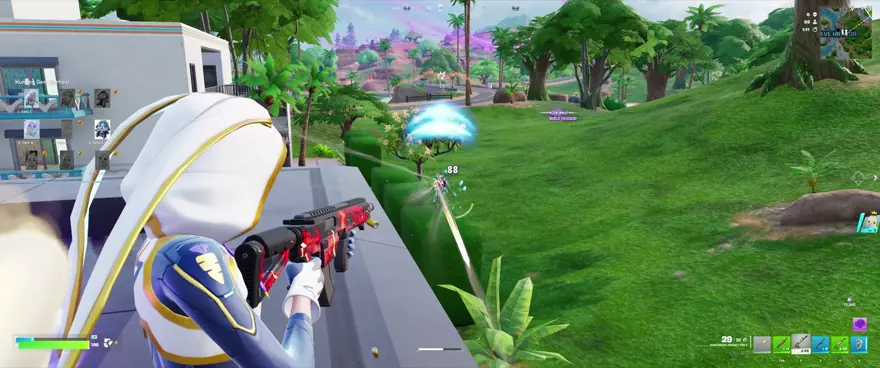
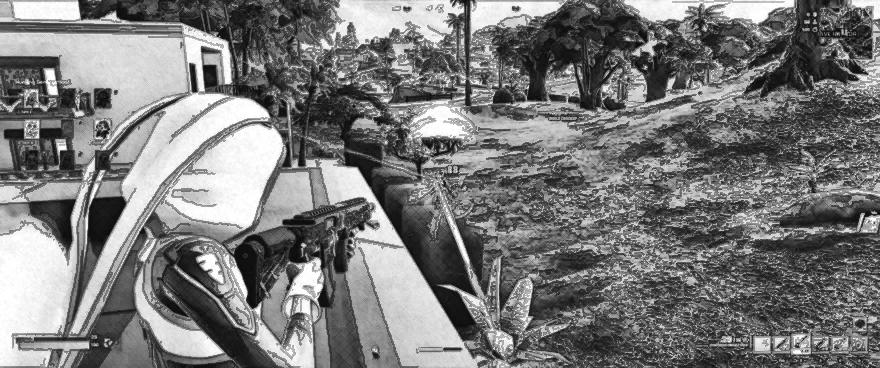
Style samples and supplied Creative Studio outputs. Select a style, then select the image to enlarge. These are still images, not a demonstration of freeze motion.
Both plans bring recording, AI assistance and timeline editing into one workspace. Start free, or explore the full Pro toolset free during beta.
Keep using manual capture, clipping and editing after your AI session allowance.
Join the beta waitlistExplore Pro features with your own footage. Availability can vary by beta build.
Join the beta waitlistPro is free for the duration of the beta.Pricing after beta will be announced before launch. Joining this waitlist does not start a paid subscription.
Shared tools first. Then compare the monthly AI allowances and the extra creative tools in Pro.
| Feature | Free | Pro |
|---|---|---|
| Co-Pilot AI sessionsUnlimited clips within each allowed session | 4 / month | No monthly cap |
| Generate VariantsAlternative edits to review | 10 / month | No monthly cap |
| AI Background RemovalRemove a background with AI | 3 / month | No monthly cap |
| AI Music RevampSeparate from shared Smart Music selection | 3 / month | No monthly cap |
| AI captionsCaption generation allowance | 30 minutes / month | No monthly cap |
| VOD Moment FinderFind candidate moments in recorded footage | 5 recordings / month | No monthly cap |
| Feature | Free | Pro |
|---|---|---|
| Cloud storageOptional clip sync · account and connection required | 5 GiB | 100 GiB |
| Export qualityOutput depends on your source and hardware | Up to 1080p | Up to 4K + higher bitrate |
| Creative StudioCreative still-frame treatments | Not included | Included |
| Smooth slow motionGenerate intermediate frames for smoother slow motion | Standard speed controls | Frame interpolation |
| Multi-destination streamingFocus Mode multistream | Not included | Multiple destinations |
*Beta allowances: These are the current planned catalog limits; final access and allowances will be confirmed with your beta build. The signed-out Co-Pilot taster counts toward the four Free monthly sessions. There is no per-session clip cap within an allowed session.
AI-assisted results should be reviewed before exporting. Cloud-backup settings default to enabled; whether an upload runs depends on configuration and the action or trigger that starts it. Review sync settings before adding media. It uploads backed-up clips. Many AI operations run locally; connected AI features can send information to selected providers. Features are being refined throughout beta.
Core editing and many AI operations run locally. Cloud backup and connected features can send information outside your PC. Review sync settings and the privacy policy before adding media.
Read the privacy policy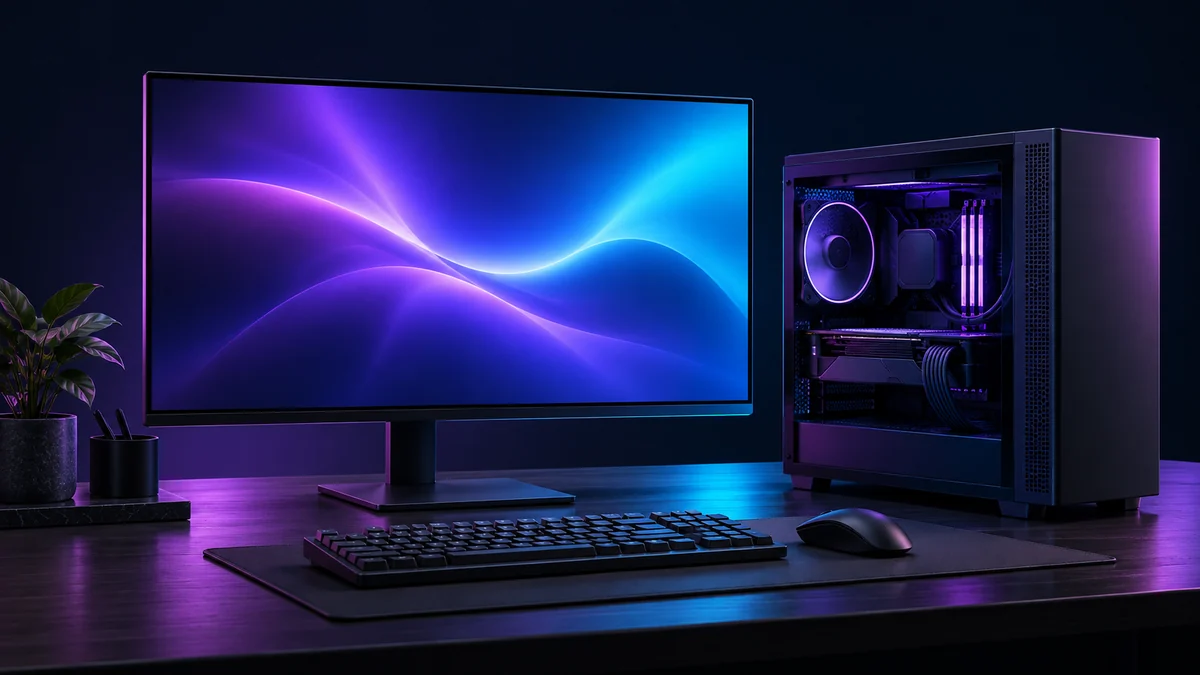
Requirements are beta guidance and may change. Model downloads need additional time and disk space. Hardware and driver compatibility should be checked against your release build.
On a small screen, scroll the table sideways to compare configurations.
| MINIMUM | RECOMMENDED | |
|---|---|---|
| OS | Windows 10 64-bit (1809 or newer) | Windows 11 |
| GPU | NVIDIA GTX 1660 / RTX 2060 · 6 GB VRAM | NVIDIA RTX 3060 or better · 8 GB+ VRAM |
| Memory | 16 GB RAM | 32 GB RAM |
| Disk | 20 GB free | SSD, 20 GB free |
| Driver | A current NVIDIA driver — the AI stack builds against CUDA 12.4 | Latest Game Ready or Studio driver |
Native capture is the preferred path on supported Windows hardware. OBS remains an alternative capture path. Check your beta build’s setup guidance for the supported hardware and capture configuration.
On AMD and Intel graphics, editing, playback, and export use the available hardware support. AI features fall back to the CPU and will be slower. Training Center remains a development feature.
First-run model downloads total roughly 7 GB. The optional local language model is a separate download of several gigabytes for longer conversations. You can skip it and still use voice commands, capture, editing, and export.
Useful extras in the same workspace.
Availability depends on your beta build.
Keep capture controls and your session close at hand while you create. Native capture is preferred on supported Windows hardware; OBS remains an alternative.
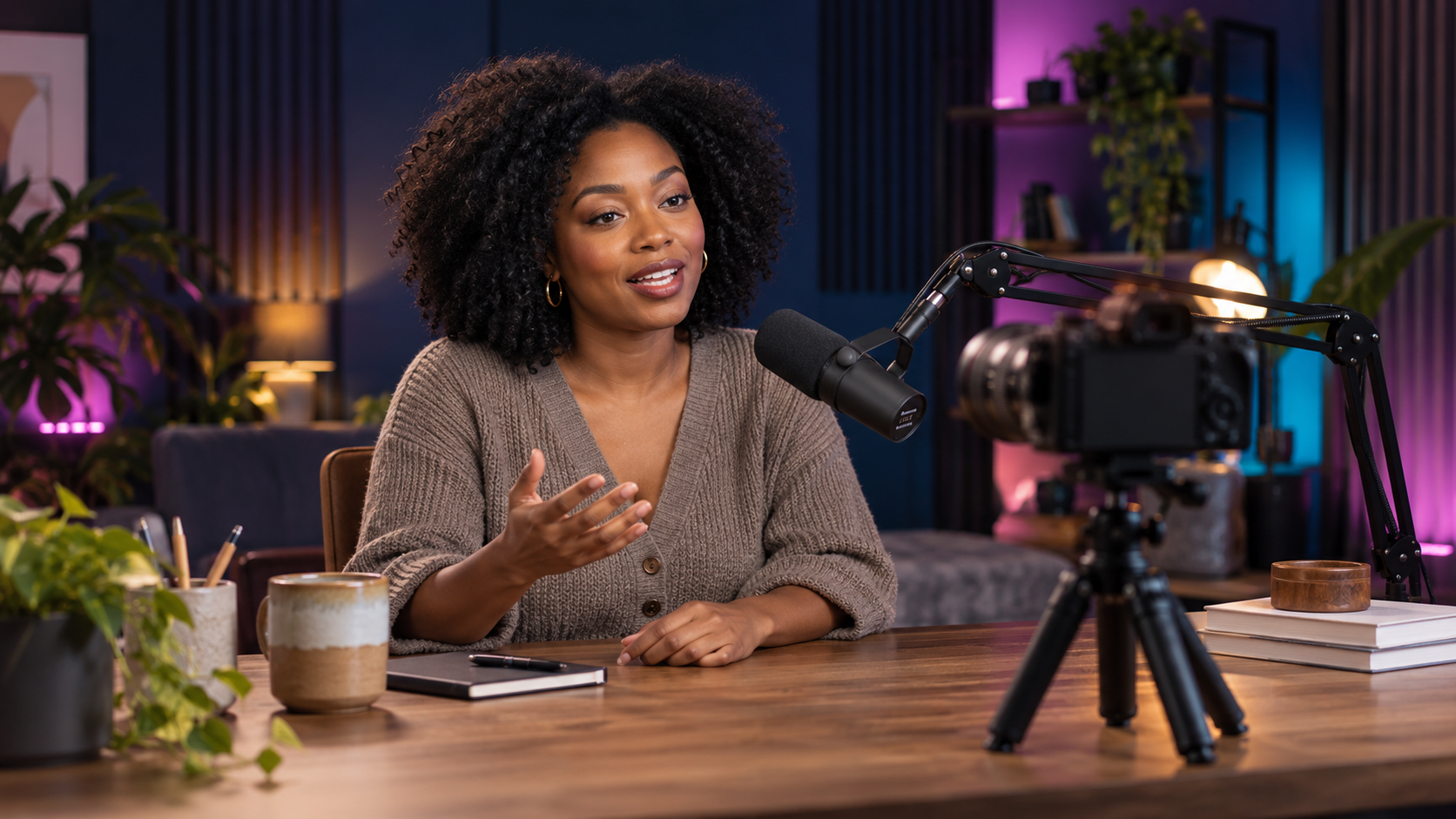
Work with the words in your footage as part of your editing flow. This is a beta feature; check the transcript and the resulting cuts.
Give a frame a different visual treatment.
Availability and limits depend on the beta build. Review AI-generated results before exporting.
Beta availability and limits vary
Auto beat-sync and an adaptive soundtrack that follows the energy of your cut, not the other way around.
Beta availability and limits vary
Separate a subject from the background without a green screen. Results depend on the footage; review the cutout before exporting.
AI frame interpolation adds in-between frames for smoother slow motion. Preview the result on your footage before exporting.
Review the words in your footage as part of your edit. Transcript editing is in beta; check the text and cuts before export.
"Create a thumbnail for YouTube" picks the best frame with vision scoring and styles it to match your footage.
The AI clip builder cuts several versions of each edit and QA-scores them — you review the winner, not the homework.
Prepare your finished video for your chosen format. Available export options depend on your beta build and plan.
Archive your timeline, AI results and thumbnail. Source media is not included: transfer the original footage separately when moving a project.
Six real rendered previews from Vabrium’s collection of 201 transitions.






These features are still being developed or validated. They are not promises of public beta availability, and release dates are not announced.
Annotate your own footage, train a detection model on your GPU, and deploy it locally — the same pipeline that produced the Fortnite model, opened up for any game you play.
Connect TikTok, YouTube, and Twitch once, then publish a finished cut straight from Vabrium — no export-then-upload round trip.
Narrate intros, recaps, and B-roll with a built-in voice — or a clone of your own — without leaving the timeline.
Review, trim, caption, and approve your captured clips from your phone, and drive a recording session from the same bridge — while your PC does the rendering.
This is the Windows beta waitlist. Join and we’ll email you access details when the beta opens.
Native capture is preferred on supported Windows hardware, with OBS available as an alternative. Exact capture requirements depend on your beta build and hardware. Importing recordings and editing do not require OBS.
The development catalog allows four sessions a month, with unlimited clips inside an allowed session. Manual mode remains available after the allowance. Final release limits will be confirmed with beta access.
Core editing and many AI operations run locally. Cloud backup can upload finished clips when configured; review sync settings to control uploads or turn backup off. Hosted assistant features and other connected services can also send information outside your computer. Read the privacy policy for details.
Project archives do not include source media. Keep your original footage and transfer it separately when moving a project.
Transcript editing is in beta. Training Center and voice cloning remain development or future features. Development screenshots can show controls that are not enabled in your release build.
Write to hello@vabrium.com, or ask in our Discord community (opens in a new tab).
The email link opens your email app. If nothing opens, copy hello@vabrium.com into your preferred email service.
Describe what you were doing and which version you used. Logs are in %LOCALAPPDATA%\Variant\logs; check them for personal information before attaching the newest one. Connect with the community using the Discord link below.
Join the Windows beta waitlist. We’ll email you when access opens.
Explore the product tour · Check your PC
Pro is free for the duration of the beta.
No payment details needed. Paid pricing will be announced before launch.
Stay connected as Vabrium takes shape.